Last Update: March 03, 2015 |
|
Generates
Prints |
All updates
Change pages for register (voting only) Addition pages for register |
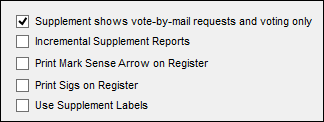
With system option Supplement Shows Vote-by-Mail Requests and Voting Only selected, each precinct register supplement has two sections, marked Changes and Additions, respectively. Both have the same appearance as precinct-register pages. The supplement contains all changes since the precinct register was generated. Any supplement generated earlier will be overwritten when you generate the new supplement.
Elections office staff or precinct clerks should manually update the precinct register for those voters listed in the Changes section. This can be done by rubber stamp, handwriting, or whatever method your county uses.
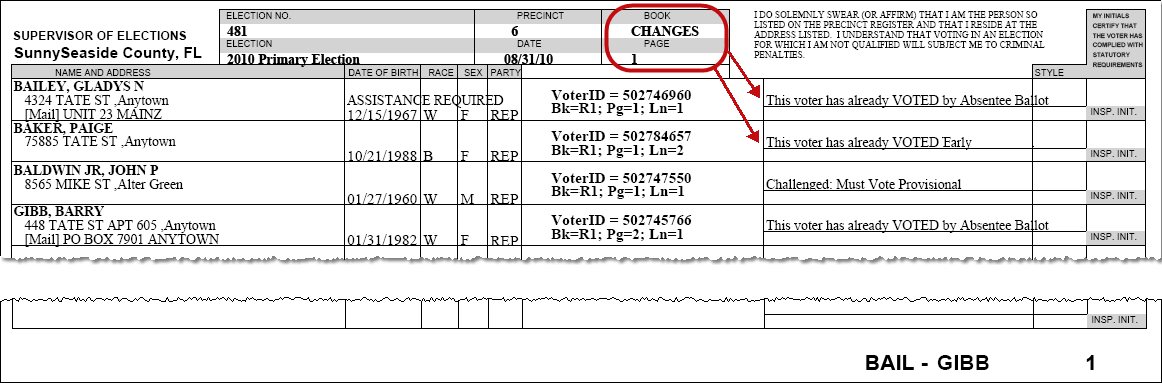
Using the system option Supplement Shows Vote-by-Mail Requests and Voting Only limits the changes in the Changes section to voters:
To whom a mail ballot has been delivered
Who have already returned a mail ballot and are now counted as voted by mail
Who have already early voted
Who have voted by provisional ballot
Whose eligibility has been challenged and must therefore vote provisionally
The Changes section does not show voters who:
Have become active so that a previously required provisional ballot is no longer required.
Should be deleted from the register because they are no longer eligible (such as deceased voters or voters who have moved out of the precinct or county). Any voting irregularities in this area will only be detected after the election, during voting-history processing.
If you want the Changes section to show these voters, you should run generate the precinct register with no system options set.
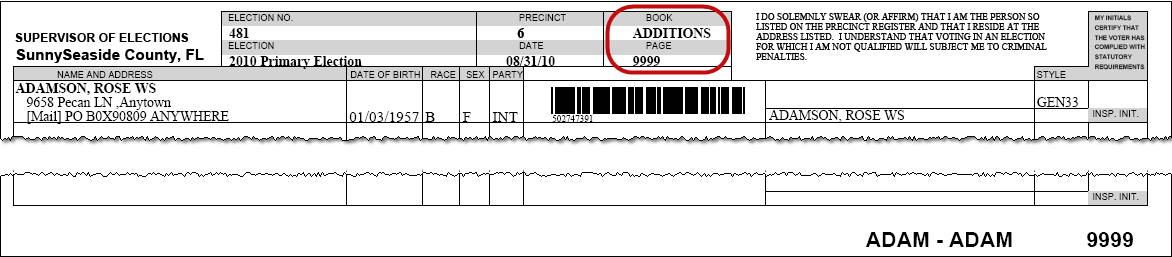
This section lists voters who have moved into the precinct or are newly eligible to vote. The Additions section should be inserted at the back of the precinct register.
To create a supplement with the option Supplement Shows Vote-by-Mail Requests and Voting Only:
Go to ELECTIONS > Maintain Election Settings > Register Generation > Create Register Supplement. If any Voter Focus programs are running, you will see a message indicating which ones need to be shut down before you can proceed with generation of the precinct register.
You will see a message reminding you that only the changes since the last supplement generation will be picked up unless this is the first time the supplement is being generated. Click OK.
On the Precinct Register Generation dialog,click Start Register Generation. When the supplement has been generated, you will be returned to the Maintain Election Settings dialog. Notice that the message Register Generated appears in the status line at bottom.
Note If the supplement generation found no changes, a supplement will not be generated, but you will still see the Register Generated message.
Go to ELECTIONS > Print Registers.
On the Print Precinct Register dialog, select Register Supplement for specified precincts. Then click Print Register.
On the Select Precincts dialog, select the precincts you want to print supplements for. To select all precincts, leave the Precincts Selected box blank and click OK.
On the Select Printers for Precinct Register Printing dialog, select the printer where you want to print the supplement pages.
For a primary, you will have the option of selecting a different printer for each party. Or you can print them all to the same printer by selecting Make All Printers the Same.
Click Ok. The supplement pages will print on the selected printer.