EViD Options
To access: EViD > Options
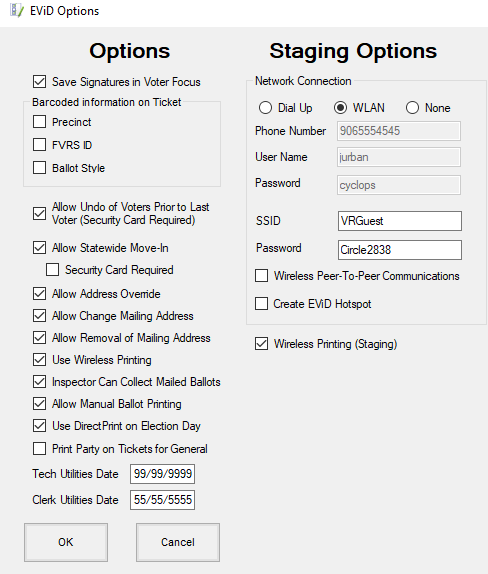
Use this dialog to configure settings applying to all EViDs across the county. These settings will then be copied to the voting activators and from there to the EViD stations. See Using EViD Options to Configure System-wide EViD Options for more information.
Fields and Controls on this Dialog
|
Save Signature in Voter Focus |
Selecting this option tells EViD stations to collect voter signatures from the sig pads. The signatures are then saved during post-processing into the voter registration database where they can be viewed in voter records (on the Elections tab.) Having a voter’s EViD signature on file lets you confirm voting took place should a voter question whether they have already voted. If you do not select this option, signatures are not collected by the EViD stations. |
|
Barcoded Information on Ticket |
The data to be shown as bar codes on early voting voter certificates and election day voting passes. You have the option of printing the following items as bar codes: Precinct—The precinct ID/early voting site ID. FVRS ID—The voter registration number. Ballot Style—The ID of the ballot style for the voter’s ballot. If you don't use a bar code for one or more of these, we recommend you turn them off to save paper. |
| Allow Undo of Voters Prior to Last Voter (Security Card Required) | Allows workers with a security card to undo more check-ins than just the one for the last voter. |
|
Allow Statewide Move-In |
Permits the EViD operator to process statewide move-in requests. Security Card Required — When Security Card Required is selected, at EViD start up the operator will be instructed to swipe the card to be used as the station's security card. If disabled, EViD operators using Clerk Mode EViDs will be allowed to move voters to other counties into your county without Security Card authorization.
|
|
Allow Address Override |
Permits the EViD operator to change a voter’s address to an address not found in your database. In such cases, the EViD will display this message: Residence address cannot be located as entered. Press No to correct the address, Yes to store address as it is and manually select voter’s correct precinct. |
|
Allow Change Mailing Address |
Permits the EViD operator to make changes to voter mailing addresses. |
|
Allow Removal of Mailing Address |
Permits the EViD operator to remove voter mailing addresses to submit a blank Mailing Address so that if the voter's mailing address has changed and it is the same as their residential address, the EViD operator does not have to enter the residential address again. |
|
Inspector Can Collect Mailed Ballots |
Permits the EViD operator to issue a provisional ballot to voters who have been issued a mail ballot when the EViD is in Inspector mode. |
|
Use Wireless Printing |
When enabled, if you are using a Bluetooth-enabled printer, the EViD will connect to the printer using a wireless Bluetooth connection. Otherwise, a wired USB connection is used. This option can later be changed on an EViD station in Tech Utilities. See Toggle Printer Mode on page 85 for more information. |
| Allow Manual Ballot Printing |
When enabled, allows a pollworker to manually print a ballot from the Clerk Utilities or Tech Utilities. |
| Use DirectPrint on Election Day | Permits the EViD operator to print using DirectPrint on Election Day. |
| Print Party on Tickets for General |
When enabled, includes party on the printed tickets for the General Election. The voter's party will print on the following tickets:
|
|
Tech Utilities Date |
A code—in the form of an invalid date—that users enter to access the Tech Utilities dialog on an EViD station. You must set an invalid date as the tech utilities code and change it as necessary to prevent unauthorized access to the utilities. We recommend:
The code should be an invalid date, to prevent the system from searching for voters with a matching birth date. This means:
or
|
|
Clerk Utilities Date |
A code—in the form of an invalid date—that a precinct Clerk or early voting worker enters to access the subset of tech utilities available to Clerks on the Clerk Utilities dialog. The same recommendations as for the tech utilities date apply. |
|
Network Connection |
The staging options let you configure dial-up connection settings for testing EViD dial-up connections during staging. Setting the options here saves you from having to set the network connections on each EViD individually. The settings you enter here will apply to all activators: Dial-up—Select this option to enable the use of a dial-up network connection for staging. If this option is selected, you must also populate the Phone Number, User Name, and Password fields. Phone Number—Enter the phone number supplied by your internet service provider. Remember to enter the number just as you would dial it (for example, if your location requires a 9 to get an outside line), enter the number as: 9,,nnnnnnn User Name/Password—Enter the user name and password supplied by your internet service provider. WLAN—Select this option to enable WiFi on your Slate-style EViDs for staging. If this option is selected, you must also populate the SSID and Password fields. SSID—If you select WLAN as the Network Connection option for staging, enter the WiFi network name (SSID). Password—If you select WLAN as the Network Connection option for staging, enter the WiFi network password (network key). Create EViD HotSpot - When enabled, allows communication between multiple EViDs at the same location when it is not possible to connect all EViDs at the site to an existing wired or wireless network. |
|
Phone Number |
Select
this option to enable setting of network connection options for
staging. |
|
OK |
Click to save the settings and exit the program. |
|
Cancel |
Click to dismiss the dialog without saving any changes you made to the settings. |


