Add or Edit Workers

There are several scenarios for worker records being created:
- New voter selected interest in being a worker on the voter registration application form
- A person who does not reside (is not registered) in the county states interest in being a worker.
- An existing worker cannot be found
Worker records can be added to Election Worker Portal automatically from data that is transmitted from Voter Focus and you can also create workers manually in Election Worker Portal.
See Daily Data Transfer and Maintenance Check to view the schedule at which data is transferred from Voter Focus to EWP.
 Worker records added automatically:
A new worker record is automatically created in Election Worker Portal when the EW Interest? check box is selected on a voter's registration application form. These worker records that are created in EWP are set to a status of Interested and populated with information pulled from the voter's record in Voter Focus.
As long as VRScheduler is running, Voter Focus will communicate with Election Worker Portal every 20 minutes to create new worker records. After the initial creation of the worker record, Voter Focus will only push updates for the
Show me the data sent from Voter Focus to add worker records in EWP:
| Certificate | Party |
| Voter ID* | Precinct |
| Name: First, Middle, Last | Residential Address |
| Birth Date | Mailing Address |
| Email Address** |
|
| Phone: Area Code, Number |
*The state (FVRS) voter ID is entered as the voter's username in the EWP worker record. This value can be changed by an admin or by the worker.
**This is the email address from the Worker Maintenance record in Voter Focus. The email address from the voter registration record in Voter Maintenance is not transmitted to EWP.
Add a worker manually:
- Select WORKERS from the Election Worker Portal menu bar.
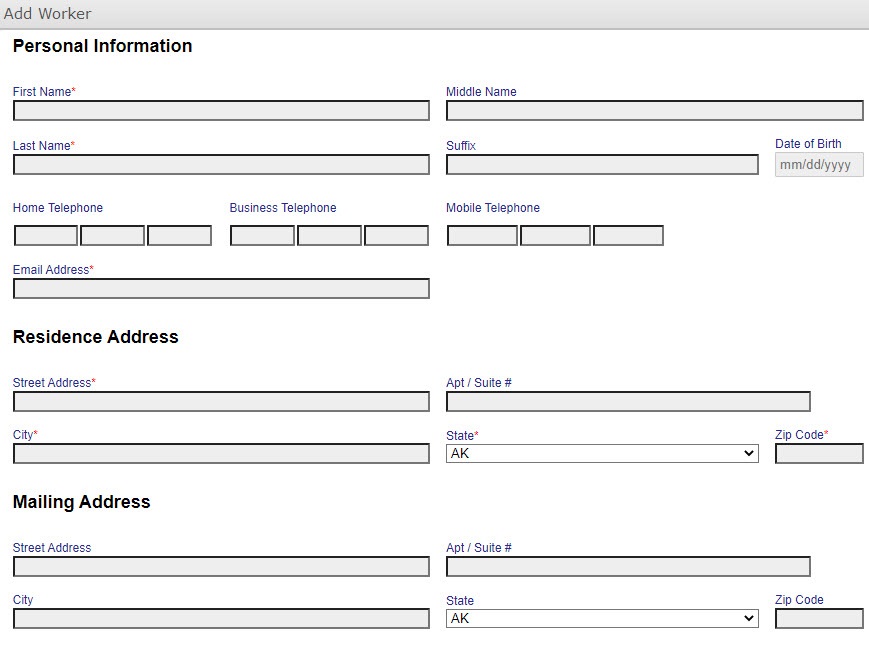
- Select Add Worker. The Add Worker dialog appears.
 Note: When adding a worker to Election Worker Portal via this method, the worker's status will automatically be set to Active.
 - Complete the required fields:
First Name, Last Name
- Email Address
- Residence Address (street, city, state, ZIP)
- UsernameNote: Workers may log in to Election Worker Portal using their email address or username.
Note: See Verify Worker Email Addresses for instructions on how to verify email addresses as valid.Note: The Mailing Address fields are considered required when the worker prefers mail be delivered to an address that is different from the residence. - (Optional) Assign the worker a password. If a password is left blank, the worker will be prompted to create a password upon their first log in.
- Click Save.
A worker ID is generated automatically for the new election worker. The ID will be a total of nine characters long and will start with EW and is followed by seven numbers.
The new worker’s name and ID will be added in Voter Focus within 20 minutes. You will then add the worker’s SSN for payroll by going to Elections > Election Utilities> Election Worker Social Security Numbers in Voter Focus.
Edit an existing worker:
- Select WORKERS from the Election Worker Portal menu bar.
- Find the worker record you want to update and select Edit. The worker's Personal tab displays.
- Update the worker's information.
You are unable to change the residential address for workers who are also in the system as a registered voter in the county. You must change the residential address for these voters in Voter Focus. The change will then flow from Voter Focus to Election Worker Portal.
You can change the residential address for out of county workers created in either Voter Focus (worker IDs starting with PW) or in Election Worker Portal (worker IDs starting with EW).
- Select Save to save all changes made.


